Sign-In Options
Users sign in to the Flow Scheduler web interface with their own Tableau identity: a Tableau password, a Personal Access Token (PAT), or SAML single sign-on (SSO).
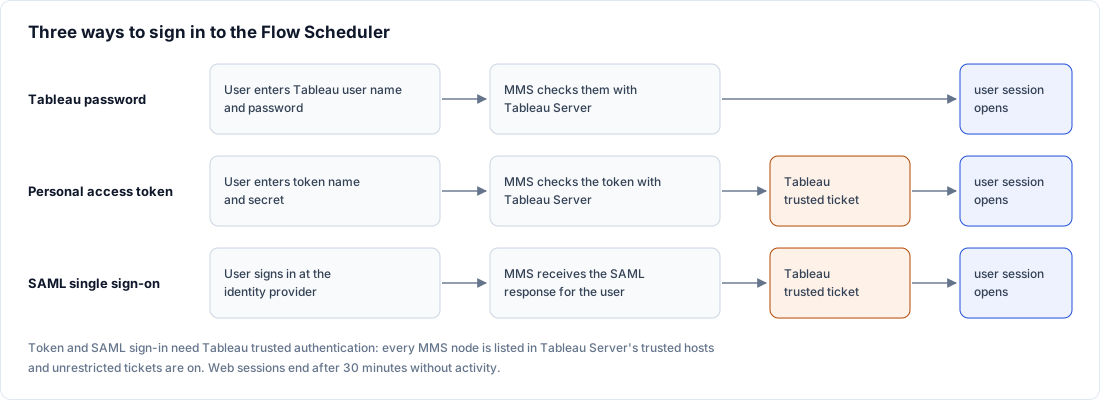
Sign-in modes
| Mode | Shown on the sign-in page when | How the user's Tableau session is opened |
|---|---|---|
| Password | Always, except on environments marked SSO Ready | The MetaMiner Server (MMS) signs in to Tableau with the user's Tableau user name and password. |
| Personal Access Token | flowscheduler.auth.pat.enabled=true is set on MMS |
Tableau validates the token; MMS then opens the user's session through a Tableau trusted ticket. |
| Sign in with SSO | SAML is enabled on the SAML / SSO tab | The user signs in at your identity provider; MMS then opens the user's session through a Tableau trusted ticket. On an SSO Ready environment this is the only option. |
In every mode the user works with their own Tableau identity and permissions, and sees only the projects and flows Tableau allows. Scheduled runs do not use these sessions: they use the environment's service account.
Before you begin
- The Flow Scheduler is enabled and the environment is enabled on the Environments tab. See Allowed Environments.
- For PAT and SSO: you can run
tsmcommands on Tableau Server as a Tableau Server administrator.tsm pending-changes applyrestarts Tableau Server, so plan a window. - For PAT and SSO: the clocks of every MMS host and Tableau Server are in sync (NTP), and the MetaMiner Java truststore trusts the Tableau Server certificate chain, including any internal certificate authority.
- For SSO: your identity provider (IdP) supports SAML 2.0 and its administrator can register a new service provider. Okta, AD FS, Microsoft Entra ID and Keycloak are examples of SAML 2.0 identity providers; they are not a certified list.
Steps
Prepare Tableau Server (PAT and SSO only)
PAT and SSO open the user's session through Tableau trusted authentication. Tableau Server must trust every MMS host and must return a full session for a redeemed ticket. Password sign-in needs none of this.
-
On each MMS host, find the source IP address it presents to Tableau Server. Trusted authentication checks this address, not the host name. In PowerShell:
$ip = ([System.Net.Dns]::GetHostAddresses("<tableau-host>") | ? AddressFamily -eq 'InterNetwork' | select -First 1).IPAddressToString
(Find-NetRoute -RemoteIPAddress $ip | select -First 1).IPAddress
In a high-availability cluster, collect the address of every node.
-
On a Tableau Server node, register every address in one command, then check the list:
tsm authentication trusted configure -th "<mms-node1-ip>" -th "<mms-node2-ip>"
tsm configuration get -k wgserver.trusted_hosts
The command replaces the whole list
Always pass every MetaMiner address in one
trusted configurecommand. Running it again with fewer-thvalues drops the others, and their sign-ins fail. -
If a proxy or load balancer sits between MetaMiner and Tableau Server, trust the proxy's address in step 2 and also run:
tsm configuration set -k gateway.trusted -v "<proxy-ip>" -
Make redeemed tickets open a full session, and check the value:
tsm configuration set -k wgserver.unrestricted_ticket -v true tsm configuration get -k wgserver.unrestricted_ticket -
Apply the changes. This restarts Tableau Server. Wait until every service is running before you test.
tsm pending-changes apply tsm status -v -
Make sure each user who will sign in with PAT or SSO exists on the Tableau site as a licensed user, and that the environment's service account (from MMA) is on the sites users will open.
An unrestricted ticket does not add permissions
wgserver.unrestricted_ticket=true changes the session type from a restricted view-only session to a normal one. The session is still the signed-in user's own identity and Tableau permissions. Only hosts in the trusted list can request a ticket, and MetaMiner requests one only for a user whose identity it has already confirmed.
Turn on a sign-in mode
Password sign-in is on by default. Users choose the environment, enter their Tableau Username and Password, and click Connect. Nothing to configure; it is hidden only on environments marked SSO Ready.
-
On every MMS node, add this line to
server\MetaMinerServer.properties:server\MetaMinerServer.propertiesflowscheduler.auth.pat.enabled=true -
Restart MMS on each node. The sign-in page now shows Sign in with with Password and Personal Access Token.
- Tell users to create a token in Tableau under My Account Settings > Personal Access Tokens, and to copy the secret when Tableau shows it.
- To sign in, the user picks the environment, clicks Personal Access Token, enters Token name and Token secret, and clicks Connect. The browser remembers the token name per environment; the secret is pasted each time.
One session per token
Tableau allows one session per Personal Access Token. Signing in again with the same token, for example in a second browser, ends the earlier session.
Register the Flow Scheduler as a SAML service provider in the same identity provider your Tableau site uses, so the SSO user name matches the Tableau user name.
- In MMA, choose Tools > FSS Configuration... and open the SAML / SSO tab.
- Select Enable SAML single sign-on for the Flow Scheduler web app.
-
Fill in the fields:
Field Value SP Entity ID: The service provider id you register in the IdP, for example https://<mms-host>:<port>/flowschedulerACS / Return URL: https://<mms-host>:<port>/api/flowscheduler/saml/acsIdP username attribute: The assertion attribute that carries the exact Tableau user name. Default username.IdP metadata XML: The metadata file exported from your IdP (Browse…). It carries the IdP's signing certificate. SP certificate (optional): Leave blank unless your IdP requires one at registration. SP private key (optional): Leave blank unless your IdP requires one at registration. Use the address users open. Behind a load balancer, use the load balancer's public address in both URLs. See Load Balancer.
-
Click Save SAML configuration. MMA writes the files to
server\config\saml\and the change applies without a restart. - In the IdP, register the service provider: import the SP metadata URL: shown in the dialog (
https://<mms-host>:<port>/api/flowscheduler/saml/metadata), or enter the entity ID and ACS URL by hand (Copy buttons). Configure the IdP to send signed, unencrypted assertions by HTTP-POST to the ACS URL. Encrypted assertions and single logout (SLO) are not supported. - Optional: on the Environments tab, select SSO Ready for each environment that should offer only SSO. MMA tests trusted authentication before it accepts the change.
- In a high-availability cluster, copy the whole
server\config\saml\folder to every node so all nodes use the same settings.
Verify
- In MMA, choose Tools > FSS Configuration..., open the Environments tab, select the environment and click Test Trusted Ticket… (PAT and SSO). The test uses the environment's service account. On success the dialog says that Trusted Authentication works for the environment and shows the host and user. On failure it says that Trusted Authentication is not working, gives the reason, and lists the common causes.
- Open
https://<mms-host>:<port>/flowscheduler/, choose the environment, sign in with the new mode, and confirm that your projects and flows load.
Sessions
- After sign-in the user picks a site (skipped when there is only one). Switch Site returns to the site list; Disconnect signs out.
- A session ends after 30 minutes without activity, and when MMS restarts. The page then says "Your session ended (the MetaMiner server may have been restarted). Please sign in again."
- Reloading the page in the same browser tab resumes the session ("Restoring your session…").
- Sessions live in each MMS node's memory. With several nodes behind a load balancer, enable session affinity. See Load Balancer.
Troubleshooting
Test Trusted Ticket fails, or PAT or SSO sign-in is refused
The usual causes are: the MMS host's source IP is not in wgserver.trusted_hosts; the user (or, for the test, the service account) is not on the site or not licensed; or the clocks differ. After any trusted-host change, check the full list with tsm configuration get -k wgserver.trusted_hosts; a trusted configure with fewer addresses drops the rest. Right after tsm pending-changes apply, wait for tsm status -v to show every service running. On Tableau Server, the access*.log files under data\tabsvc\logs\httpd\ show each POST /trusted request with the source IP.
Sign-in succeeds but no projects or flows load
wgserver.unrestricted_ticket is not true, so Tableau returned a restricted session. Set it and run tsm pending-changes apply. With SSO, also check that the assertion is not encrypted and that the user name attribute carries the Tableau user name.
More sign-in symptoms, including SAML signature and certificate errors and the exact error messages: Troubleshooting.